
01 / GET READY
A few things to have in place.
- Confirm that your practice uses Nextech Select or Practice+.
- Have your own Nextech Community Portal account ready.
- Identify a practice administrator who can authorize access.
Get the exact API listing confirmed.
Ask your Teri contact and Nextech Client Success Manager to confirm the supported connection and the exact API product your practice should select.
Do not choose another vendor’s API product. The reference guide uses “NextPatient API Access”; that is a different vendor’s listing and is not an instruction to connect Teri.
Use the confirmation request below02 / REQUEST ACCESS
One step at a time.
Once the correct API product is confirmed, an authorized member of your practice can follow these portal steps.
Sign in to Nextech Community
Use your own Nextech Community credentials. If you cannot sign in, contact your Nextech Client Success Manager.
Open the Nextech portal (opens in a new tab)https://nextech.my.site.com/nextech
Check your ordering permissions
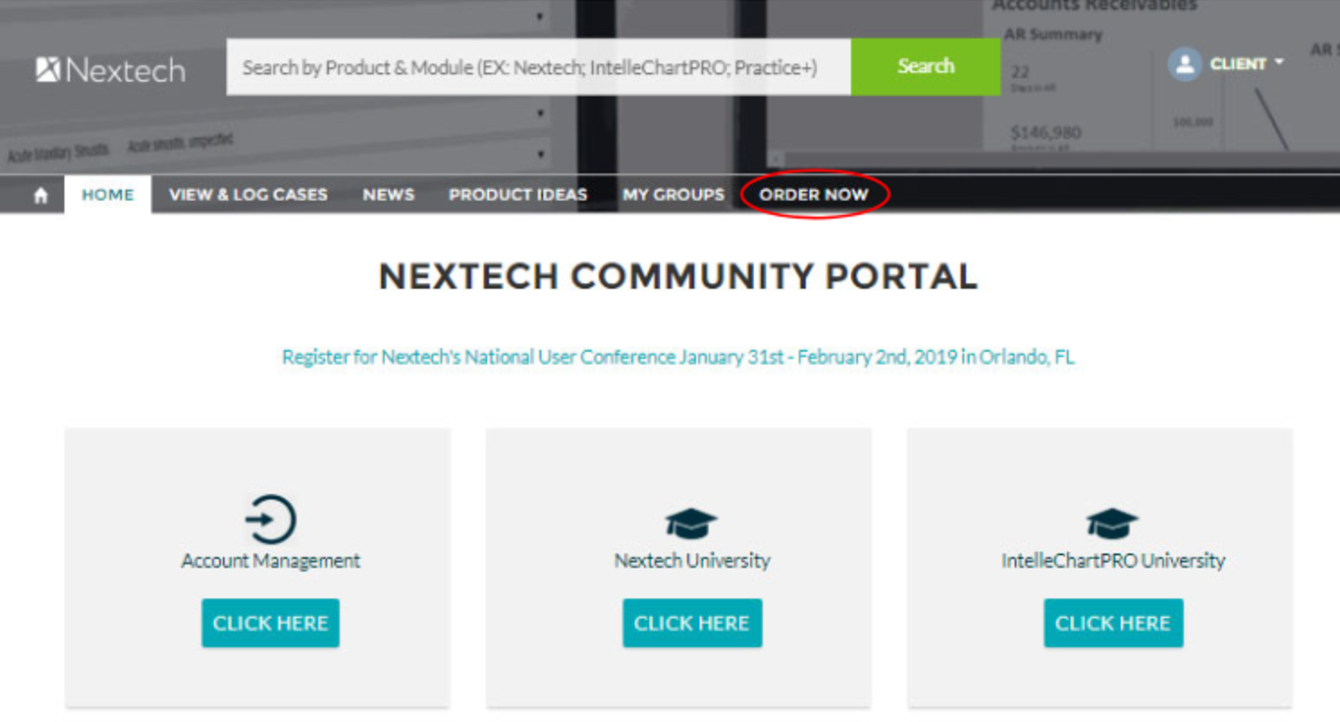
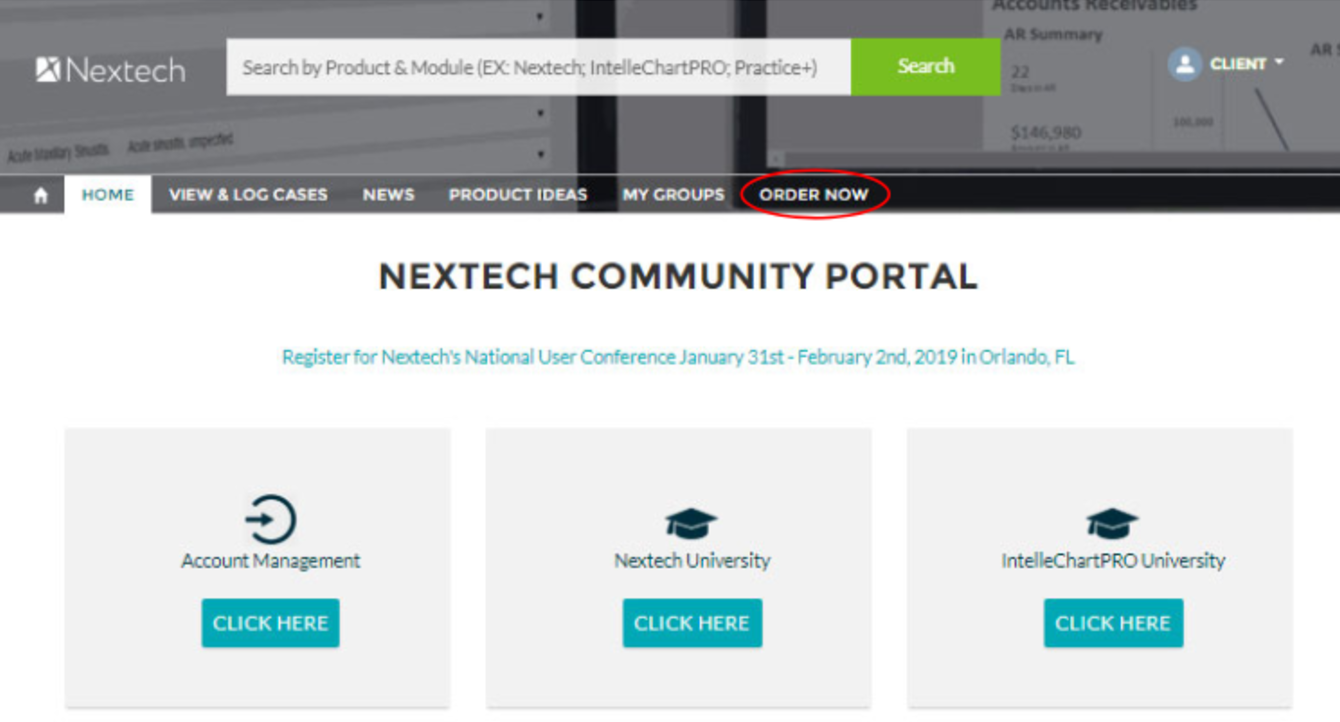
Look for ORDER NOW. API ordering requires a Super Nextech Community User. If the tab is missing, ask your practice administrator to contact your Nextech Client Success Manager and authorize the appropriate access.
 View full-size screenshot (opens in a new tab)
Original Nextech portal reference: find ORDER NOW in the navigation. Your current portal may look different. Select only the confirmed API product
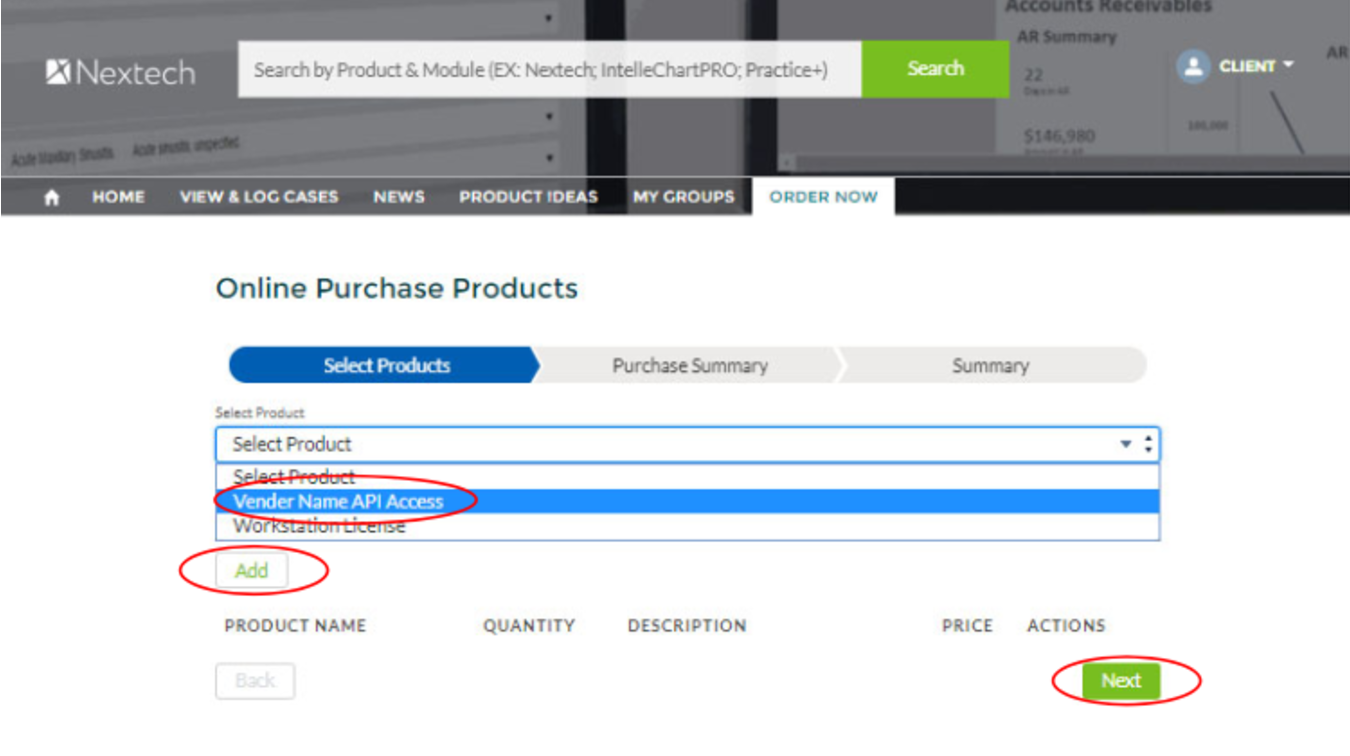
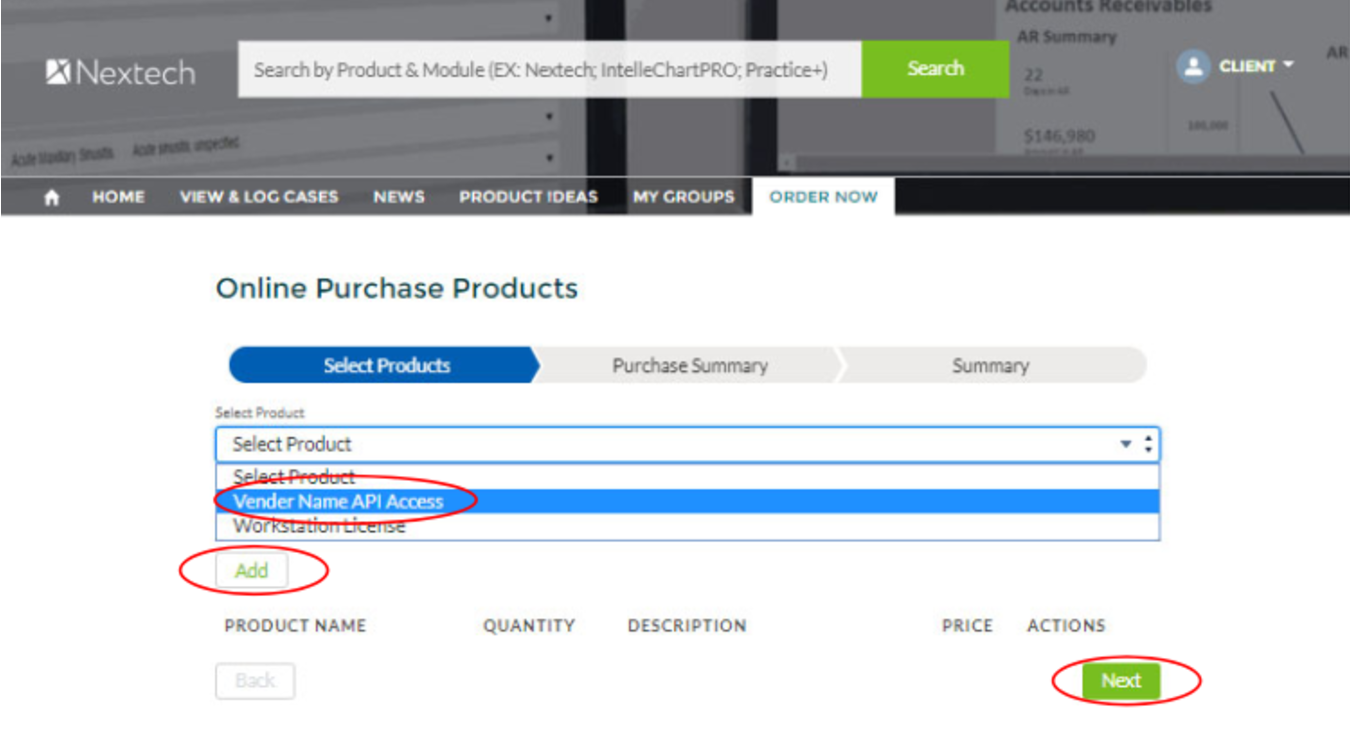
Open ORDER NOW, select the exact listing confirmed by Teri and Nextech, then choose Add and Next.
If the listing is missing or its name differs, pause the order and ask your Teri contact and Nextech Client Success Manager to clarify it.
 View full-size screenshot (opens in a new tab)
The original screenshot uses the placeholder “Vender Name API Access.” Select only the exact listing confirmed by Teri and Nextech. Review and authorize the request
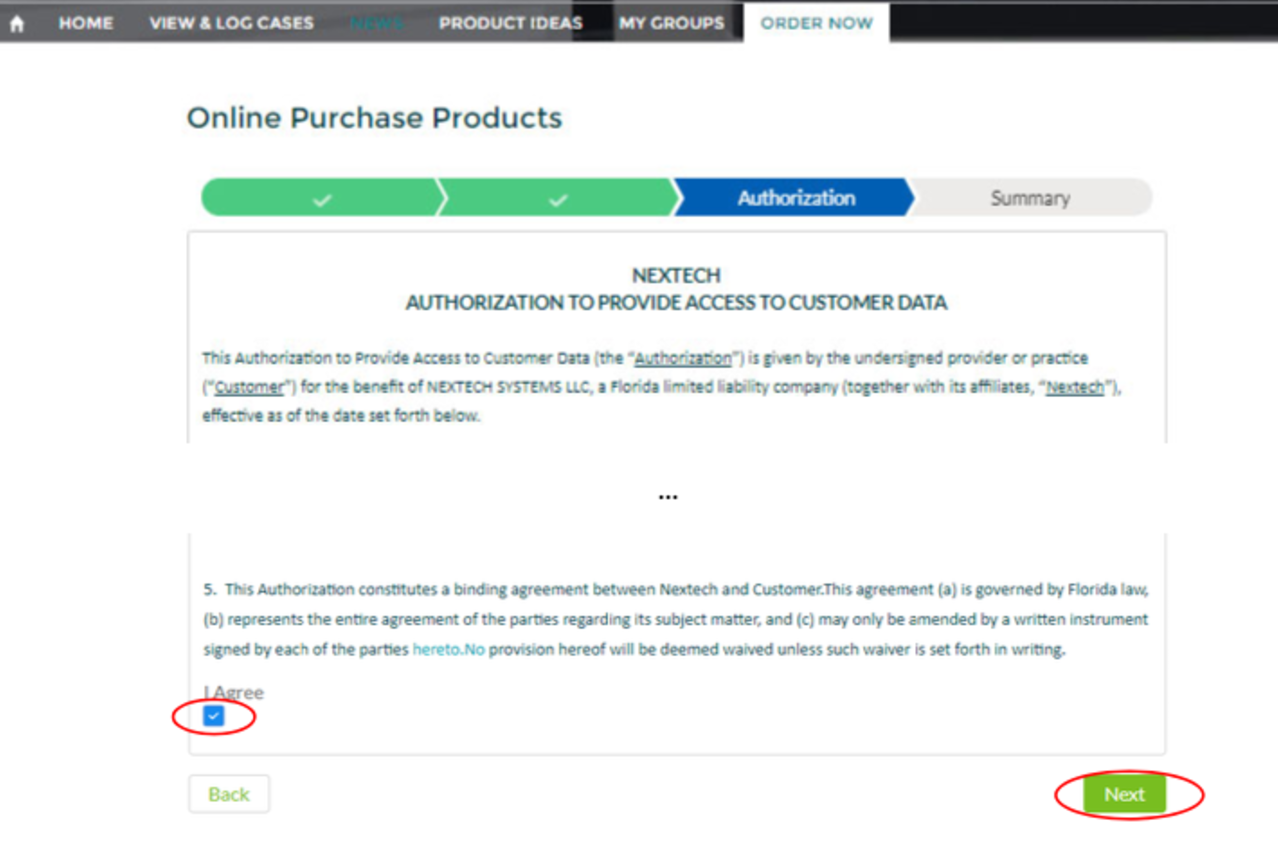
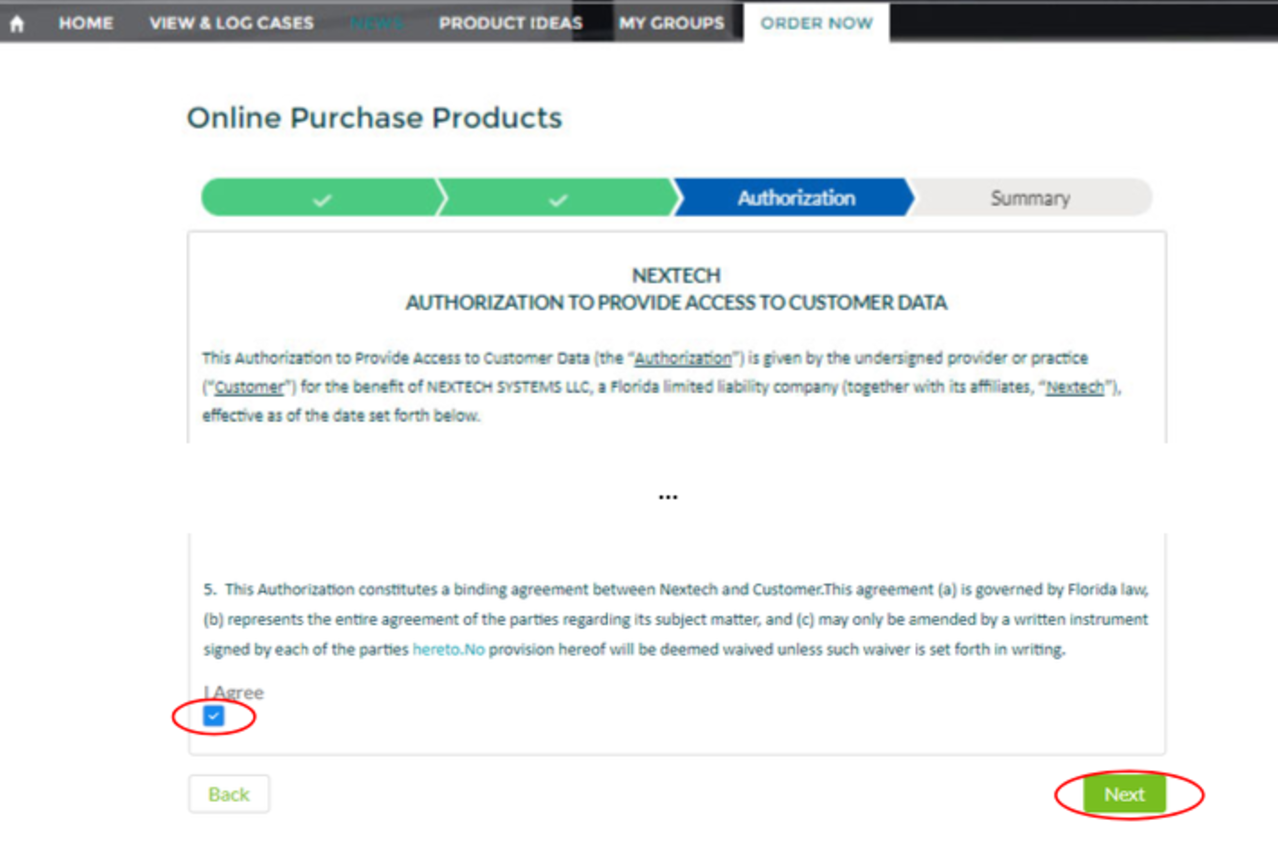
Read the authorization and any terms or charges shown. Only someone authorized to approve the request for your practice should select I Agree and continue with Next.
 View full-size screenshot (opens in a new tab)
Original Nextech authorization reference. Review the current terms in your portal before an authorized practice representative approves. Save your transaction ID
Keep the transaction ID generated by the portal, then select Finish. Share the reference with your Teri contact through your agreed support channel.
Wait for connection confirmation
An order confirmation does not mean the integration is active. Confirm the connection with Teri and validate the agreed workflows before your team relies on it for patient operations.
03 / A LITTLE HELP GETTING STARTED
The first message, ready to go.
Use this draft to ask Nextech which connection is available and what your practice needs to authorize.
Subject: Confirm API access for our Teri Health connection

Hello Nextech team,

Our practice uses Nextech Select or Practice+ and is preparing a connection with Teri Health.

Please confirm whether a supported API connection is available for our practice and the exact API product we should select in the Nextech Community Portal. Please also confirm the permissions, authorization requirements, and any applicable terms or charges before we order.

If our account needs Super Nextech Community User access, please let our practice administrator know how to authorize that access.

We will confirm the listing with Teri Health before placing an order.

Thank you.
Copy this draft, add your practice details, and send it through your usual Nextech support channel. Nothing is sent from this page.
04 / READY FOR YOUR TEAM
Keep a clear record.
Before your team starts using the connection, make sure these pieces are in place.
- The exact API listing was confirmed with Teri and Nextech.
- An authorized practice user approved the request.
- Your transaction ID is saved and shared with your Teri contact.
- Teri has confirmed the connection and your agreed workflows have been validated.
About this guide. The preparation steps are adapted from, and the three original Nextech portal screenshots are reproduced unchanged from, NextPatient’s Nextech Select and PracticePlus activation instructions (opens in a new tab). The portal process is a reference; Teri’s listing and your practice’s connection must be confirmed separately. Nextech’s current portal and terms govern the request.
Reference: https://help.nextpatient.co/nextech-select-and-practiceplus-api-activation-instructions